|
 |
- This page is designed to
get instructors started with GDP11e and is
subject
to
change as GDP features are released. Check the date in the footer
of
each
file to verify the most recent posting.
- It is advisable to read these files in the order in which they are presented.
- Feel free to download or link to any file and
use it as a resource in your class. To
customize these handouts, download them in Word, edit them as desired,
and
save them as a Word file or PDF file.
|
|
Help and training: Click
here
for information on help and training.
GDP preview: Visit the
demo site at
https://mhdemo.gdp11.com.
Contact the
CXG
Digital Technical Support for the log-in credentials. Click
Sales Rep Locator to find your school's representative.
GDP
online account: When you are ready to adopt GDP11e, McGraw-Hill
will create a URL specific to your school, which your instructors
and students will all use to log on to GDP. One person
will be assigned the role of GDP Administrator for your school whose
basic duty is to assign Full Instructor roles and perhaps create
Classes, Class Sections, and adjust Preferences. After that, Full Instructors can
enroll new students,
adjust Preferences, and so forth, so students can begin using GDP.
|
|
 |
Includes a list of steps
for an Administrator or Full Instructor to use GDP's Course Manager to:
- Understand
Full
Instructor and Limited Instructor roles.
- Create, edit,
delete, archive, and reactivate Classes,
Sections,
and students.
- Manage
Preferences and Resources, and use Simulated
Student.
-
Complete
end-of-term activities: Delete unregistered students; archive
Classes, Sections, and students;
empty Student Portfolios; reassign returning students; set
registration preferences for past and present term; copy or create new Classes;
and set registration preferences; disable scoring in archived
Classes and Sections.
-
Complete start-of-term activities:
Reassign returning students and perhaps empty Student
Portfolios; create and pre-enroll new students; set up
Class Preferences and Resources for new classes.
|
|
|
Instructor Roles Permissions in Course Manager
[PDF]
Includes a table with a summary of permissions for
these instructor roles: Administrator, Campus Administrator, Full
Instructor, Limited Instructor, and Assistant. The Inactive
Instructor role is also discussed.
|
|
|
Includes a list of steps
for an Administrator or Full Instructor to use GDP's Course Manager to:
- New students can
access GDP via temporary
Courtesy Access, Proficiency codes, and Placement Tests.
- Consider posting
Lessons 1-5 as a File Resource.
- Prepare and
import an Excel class roster to pre-enroll new students.
- Set up e-mail
accounts.
- Create and
assign new students to a Class/Section.
- Access assigned student
lists: active (non-archived) and archived students; available
(unassigned) and assigned students (to remove/assign them);
assigned students and their Progress Reports.
- Reassign a student,
and delete
unregistered students
- Archive Full
(registered)
Students (and vice versa).
- Access Archived
Student list.
- Register
pre-enrolled students and self-register
students at log
on.
- Use the
Student Portfolio and add comments.
- Manage students
between terms.
|
|

 |
Includes a list of steps to
use GDP's Resource feature to create
and assign file and link resources, which students access from My
GDP, Resources. This handout includes a complete list of
suggested Link Resources.
-
File Resource: a link to an actual file you create and
upload to GDP (perhaps
handouts such as a course outline, weekly assignment sheet, or
class announcements)
or a file you download from a Web site.
-
Link Resource: a link to any link anywhere on the
Internet—an
external Web site, your
school’s Web site, or a link to a page
or handout posted at this Web site.
 |
Resources can be scheduled to "appear"
and "disappear" from the student list of resources on
any given date and time. Consider going green by replacing printed handouts
with electronic ones. Here is a list of topics: |
- Creating,
assigning, scheduling, editing, removing (unassigning), and deleting file and link resources.
- Verifying
assigned resources via Simulated Student.
Unit 1, Lessons 1-5:
Instructors may
duplicate for the first five lessons until students have a textbook.
|
|
|
Includes detailed steps to
use GDP's Detailed WPM Report Table/Charts feature to generate both
a Detailed WPM Table and a Detailed WPM Chart, which displays the
data as a bar chart. These reports allow you to:
-
Generate a listing, for example, of all timed writings or only
the best timed writings for a given student, Campus, Class, or
Section or for multiple Classes and Sections.
-
Includes columns for WPM and Errors so you can view all results
simultaneously.
-
Is useful at the end of a school term when you need easy access
to all timed writing results data for the school term, which you
can filter specifically in order to return an automatic WPM
average a final grade for timed writings that reflects your
course standards.
|
|
|
Password Note:
This file includes sensitive information and is
password protected. To find the password, open Course Manager, click the
Help button; on
the GDP Instant Help window, you will see a password listed to
access the GDP 11 Online Learning Center (OLC). Use this same
case-sensitive password to open any password-protected file on this
site. If you are prompted with a message such as "The server
gdpkeyboarding.com at gdpkeyboarding.com requires a username and
password" or something similar when you attempt to save a file, just
click Cancel and you should be able to save to your computer
without issue. Internet Explorer is a more reliable browser to use
to open password-protected files.
Includes information regarding some basic navigational and
conceptual features of Course Manager to help you use it more
efficiently, such as:
-
Expanding and collapsing Classes and Sections.
- Using Actions
menus, Edit, secondary tabs, and Edit Details for a Class, Class
Section, or Student.
- Using Students tab
filters.
- Opening and using the
Student Portfolio.
- Using the
Student Portfolio: sorting by Column Heading, Date, and Lesson
Time; expanding/collapsing, annotations;
exporting and printing results.
- Understanding
Student Portfolio for time tracking/Total Time, exporting to
Excel, and using Sort and SUM for Time Spent.
- Using the
Detailed WPM Table Report.
- Finding a
missing class or student.
- Using Scheduling
as a testing and document processing strategy:
- Using Simulated
Student.
|
|
Message
Center |
|
|
Message Center [PDF]
Communicate internally via GDP's Message Center to an
entire Class or Section or to individual students. Monitor and archive all communication between
instructors and students in one place thereby eliminating the need
for external e-mail.
- Access
Message Center via Course Manager under the USERS pane and
access Preferences for Class or
Section to enable or disable Message Center .
- Create and send
a message to a Class, Section, or individual students.
- Access
Message Center as a student via My GDP, Message Center.
|
|
Placement Tests |
|
|
Click
here
for details on using Scheduling to enable Placement Tests.
Specifically, in Scheduling & Report Strategies for Testing &
Document Processing, see the section "Scheduling, Proficiency Codes,
and Placement Tests" in
Placement
Test B: Timed Writing [PDF]
(password
protected)
You can post this file as a File Resource for your
Proficiency Students. They can open it via My GDP,
Resources. It includes directions to take Placement Test B:
Timed Writing, and it includes copy for the timed writing. You could
duplicate it in advance so students have copy available. See
GDP Resource
Feature for details.
|
Interim Gradebook |
|
|
Setting Up an Interim Gradebook, by Arlene Zimmerly [PDF]
Includes information regarding setting an Interim
Gradebook based on the
course
outline and
assignments from the
Computer Keyboarding 1 Online course Web site. (Also see the
Interim Gradebook Guide.)
- Assessment plan.
-
Configure Gradebook, Scales, and Categories.
-
Create Categories, assign Weights, configure Exercises, and crosscheck the
Required Exercises List.
- Enter grades for Nonbook Categories,
use Lock/Unlock
Grade, and toggle Grade
Inclusion.
- Use the Portfolio and advanced Portfolio
filters.
- Copy Gradebook
and troubleshoot.
Movies:
|
 |
NOTE: See the
Assignments page on the Computer Keyboarding 1 site to download
an Excel spreadsheet you can customize to calculate an ongoing,
in-progress grade as an alternative or complement to the Interim
Gradebook. |
|
 |
Decide
which browser to use: Internet Explorer
or Firebox. Read about the advantages of each one in these handouts
before deciding. Then follow the steps for Internet Explorer or
Firebox to prepare your campus lab for GDP.
Students: The
information in these handout and on this Web site is designed
primarily to help instructors on campus prepare for GDP.
Always check with your own instructor first before taking any steps
whatsoever to get ready for GDP11e!
|
|
|
Includes a list of technical steps
instructors should consider before imaging campus labs to:
-
Set all Word and browser options.
- Update Adobe
Flash Player and add a PDF reader.
-
Create a GDPFILES directory (optional) and enable one-click cleanup of GDP files on the Windows Desktop (optional).
|
|
Practice Exercises & Document Processing |
|
GDP11e uploads all skillbuilding activities
automatically. Downloading and uploading files for document
processing does not
begin until the first Practice exercise in Lesson 21. Lesson 21 is an
ideal opportunity to demonstrate file
management routines in GDP because students are comfortable with skillbuilding
routines and ready
for document processing. To access Practice exercise solutions, visit the
Resources
Tests
page, "Tests and Solutions."
Also refer to the presentation "Orientation
to Word Processing" on the
Computer
Keyboarding 1 Online course Web site.
Saving Practice Exercises.
Practice exercise Word files are never saved or recorded in
any way in the Portfolio nor are any practice files ever uploaded by
the student or automatically to the GDP server. That said, students
are directed to save some Practice
exercise Word files. However, where they save them and whether or
not the instructor ever sees them is up to the discretion of each
instructor.
Assessing Practice Exercises. If instructors wish to assess a completed Practice exercise, they should
tell students how to submit such files, perhaps
via e-mail or perhaps
via a printout of the final solution. If
instructors wish to assess the solutions for a given Practice
exercise, they should visit the
Online Learning Center where the
solutions are posted.
Time Spent on Practice
Exercises. When a
Practice Exercise menu item has been visited, GDP will begin
accumulating time for that menu item. However, that item and the
cumulative time spent on it will not be recorded in the Portfolio
until the student clicks Start Work. Time Spent begins to
accumulate only when students click Start Work from the
Practice Exercise screen and ends when students click Next. If
students return and click Start Work and Next on a subsequent
attempt, the attempt number will not increase. However, Time Spent
and Total Time will continue to accumulate.
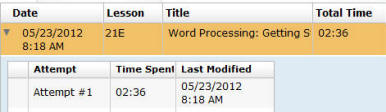
If students exit GDP
without clicking Next, no Time Spent will be recorded. Instructors
who are concerned about time reporting should tell students to click
Start Work immediately and then read the WM directions and complete
the exercise. Only then should they click Next. In this way, time
reporting will be completely accurate for that Practice Exercise. See
Time Spent and Total Time in the Portfolio, "Time Tracking for
Practice Exercises" for examples and details.
|
|
|
Includes information
regarding:
- Time management guidelines and time tracking for skillbuilding, document processing jobs, document
formatting, and Practice Exercises.
- Understanding GDP Total Time.
- Exporting Student Portfolio to Excel, and using sort and SUM
features to calculate Total Time in Excel.
|
|
|
Includes information
regarding:
- Browsing concepts in Windows.
-
Practice exercise, Lesson 21E, using
Internet Explorer or Firefox.
-
Correspondence 30-19, a typical document processing job, using these
GDP features: Start Work, Save As, Return to GDP, Browse,
Submit Work, Scoring Results, and Edit.
-
Proofreading Checks.
- Changing a
previous document processing job such as Correspondence 26-4.
- Reference
initials in correspondence.
- Viewing comments,
advanced filters, Time
Spent, Total Time, Proofreading Checks, and Attempt Origin in the Portfolio.
|
|
|
This handout is also available in GDP Instant
Help: Click Help, click View
All Entries; in the left pane under
Resources, click the link for
Formatting Assistant.
If you wish to score formatting, you must
enable the Formatting Assistant when you set up
Class and Section Preferences in Course Manager. (See
Managing Classes & Class Preferences in Course Manager [PDF]
for details on setting Preferences.) GDP looks
for the expected formatting elements and reports any missing
expected formatting via the Formatting Alerts pane, but it's
virtually impossible to detect all instances of unexpected formatting. The Formatting
Assistant provides useful feedback, but you should always open the job in Word and review it
before making a final assessment: From the Student Portfolio,
under the Date column, click the arrow next to the desired
job to expand it; click Details for the desired attempt;
click View in Word. See the movie "INSTRUCTOR:
Formatting Assistant" for further details.
|
|
|
Includes a list of best practices
for students for browser and Word settings,
registration codes, daily routines, resources, and
document
processing.
|
|


